Installing FL Studio on linux.
Adrian Victor - 4/19/2026 (last edited in 4/23/2026)
Also available in other languages:Prologue
Since I permanently moved to Linux in 2024, I have been impressed by the unwavering ability of the open-source community to bring to life in Linux complex software originally made for Windows. However, one of the programs cursed with the most stubborn and abstract errors in the old guard of Wine is FL Studio, a characteristic that made me, for a long time, think that Image-Line's DAW would not run at all on the penguin's system.
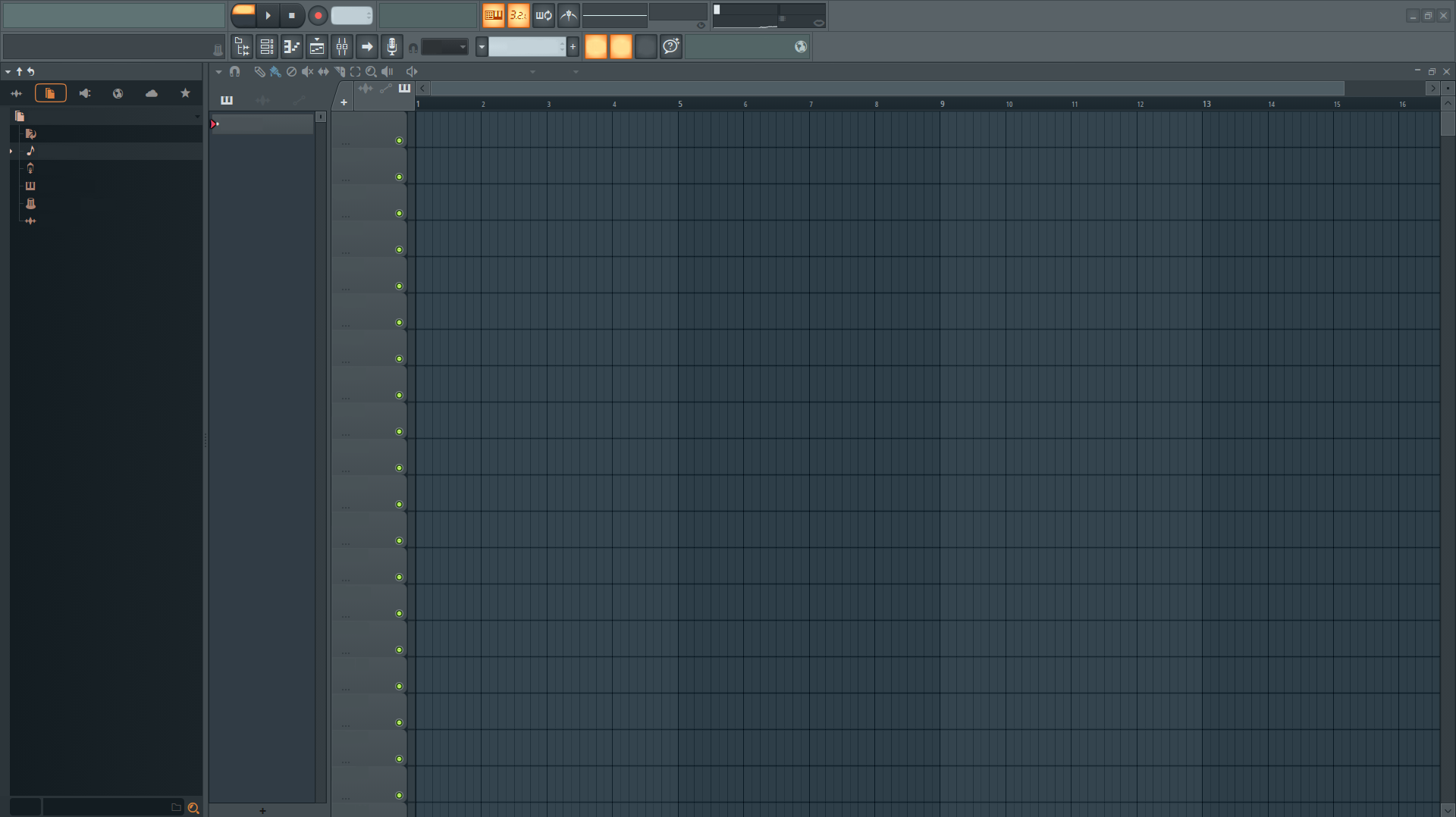
It turns out that FL runs on Linux, and runs very well, considering its complexity. Disregarding some visual problems, some VSTs that simply don't run, and a workaround to run 32-bit plugins, the experience of using FL Studio on Linux is quite solid. It seems that Valve, Wine, and the open-source community are not messing around.
Before getting into the formalities, I would like to define the scope of this tutorial. I'm making it with everything that fits in my recent memory working with FL on Linux. But it's also not a static post; if something is missing, send me an email and I'll update it.
Preparations
The tutorial will be done using Arch Linux on a computer with an Intel i5-1235U + 16GB of RAM setup. However, it's worth noting that, due to the nature of flatpak, the tutorial applies to any machine with the package manager installed.
The first step is to install the Bottles software, which is available under the name com.usebottles.bottles on Flathub. The simplest command to install the app on a system with access to Flathub (enabled by default on most distros, like mine) is flatpak install bottles. If you're not a fan of running commands, most app stores on Linux download flatpaks and come with Flathub already enabled—and know that this is the last time we'll run any command.
If you're not a fan of Flatpak, there's a Bottles package in the AUR. From what I understand, there are even some Bottles developers involved in maintaining that package.
After that, create a new bottle in Bottles. I recommend creating one in the games preset, since FL is somewhat visually complex.
Finally, before installation, let's install the dependencies, which are accessible through a button of the same name in the bottle's options. FL Studio has only two optional dependencies:
allfonts- Microsoft and Adobe fonts, helps with some text display issues in FL. I generally don't need to install it, but I have experienced unlabeled piano roll keys due to the lack of this dependency.
webview2- Necessary for FL Cloud, Gopher (AI), Help Manual, and possibly some other FL functions that pull a webview. I recommend not installing this dependency if you don't use any of these functions, because without it I noticed a performance gain.
We're ready to proceed with installing the DAW.
Installing FL Studio
Bottles already offers an FL installation package on the bottle's page, just click on Install Programs and search for FL Studio. However, this installation method didn't work for me; the installer froze on the dependencies. I believe that if you're successful with your installation, the result will be the same as what I'm about to describe below.
First, get an FL Studio installer, if you don't already have one. Image-Line offers an installer on its website.
With the installer in hand, just use the "Run executable..." button on the bottle's page and select your installer. In a few moments you should be in the FL Studio installation.
If everything goes right, the newly installed DAW should appear in the applications list with the name "FL64". You can already start it.
Initial Configuration
When you open FL Studio for the first time, you'll probably come across an error screen saying "The MIDI input device is already allocated. It may be in use by another application.", ignore the errors, and in the menu at the bottom labeled "Input", disable the inputs that have the FAIL label.
Much as I would love to say that FL Studio works perfectly on Linux, we're working in an environment not supported by Image-Line and certainly more unstable than its native systems. Therefore, I recommend that you enable the autosave option in the most aggressive mode.
Working with VSTs
Music production plugins are the biggest source of incompatibilities in our environment, but that doesn't mean that the majority don't work out of the box.
Beyond those that don't work, and potentially crash your FL Studio, there are plugins that don't behave right, like the example of Antares Auto-Tune Pro which works perfectly—given the exception that the interface and animations work strange and sluggish. I think this happens and repeats in so many plugins because the frameworks used to make their interfaces work somehow bizarrely that Soda is not optimized to run.
In any case, as for these stubborn plugins, the only recommendations I have to mitigate the problem are to avoid leaving them open as much as possible while doing other things, and—if possible—use alternatives that have more sense when it comes to interface.
32-bit VSTs
Now that FL Studio is working, you can try to open a 32-bit VST, and, doing so, see that it will probably freeze the DAW.
If you happen to freeze without proper backup on an important project, instead of closing FL Studio, you can use your task manager to kill the ILBridge.exe process. This is the process that freezes the DAW when you try to load a 32-bit plugin; it's the bridge that makes it work in 64-bit FL Studio—when interrupted, the DAW displays an error about not being able to load the plugin and returns to normal.
But there is indeed a way to run 32-bit plugins. Add a Fruity Wrapper in place of the plugin you want to add, switch to its options tab and leave it like that. Now right-click on the generator/effect you just added and replace it with the desired plugin. The options page should load. Click on the button labeled "Processing" and check "External window".
Done, the plugin should appear in a separate window from FL Studio and be working as expected.
Honorable Mentions
Below are some highlights worth knowing:
Virtual Drives
Bottles uses its own version of Wine called Soda, but deep down, it's still Wine. Therefore, you can benefit from Wine's virtual drive settings. In the bottle's options, when expanding the "Legacy Wine Tools" submenu, you'll find the "Configuration" option. When you click on it, a prehistoric-looking menu will appear; at the top you can see a tab named "Drives". There you can map different Windows drives to locations on your Linux system, and they will appear in the Wine file explorer and be accessible to applications.
Hardware Acceleration
If your FL Studio is running terribly, I recommend that you take a look at the "Use dedicated graphics card" option of your bottle, with it disabled my DAW freezes incessantly.
Conclusions
I'm not the most apt person to say how far the DAW's usability extends on Linux; I'm far from an advanced FL user. But, for your information, I was able to produce the track Velkommen entirely on the penguin's system and have no intention of going back to Windows.
It's really inconvenient when one plugin or another doesn't work, when I have to create a Fruity Wrapper before using a 32-bit plugin, or when I think that maybe the DAW could perform a little better natively on Windows. However, for me, it's a very fair price to pay to mix into my music a little bit of that ideology juice that is challenging myself not to use Microsoft's system.
I hope you also find that comfort—not in convenience, but in challenging the mold with intention. Eccentricity worthy of an artist.